Condition Types Reference
This page provides detailed configuration instructions for each condition type available in iMember360 conditionals.
Common Setup Steps
All condition types share the same initial setup steps:
-
In the Condition name input area type your chosen name for this condition. If no name is input, by default, when the conditional is saved it will be named the same as the condition type.
-
From the Condition status drop down select Active or Inactive as required.
infoInactive conditions will always evaluate as TRUE.
-
From the Condition type drop down select your required condition type.
User Conditions
User Login Status
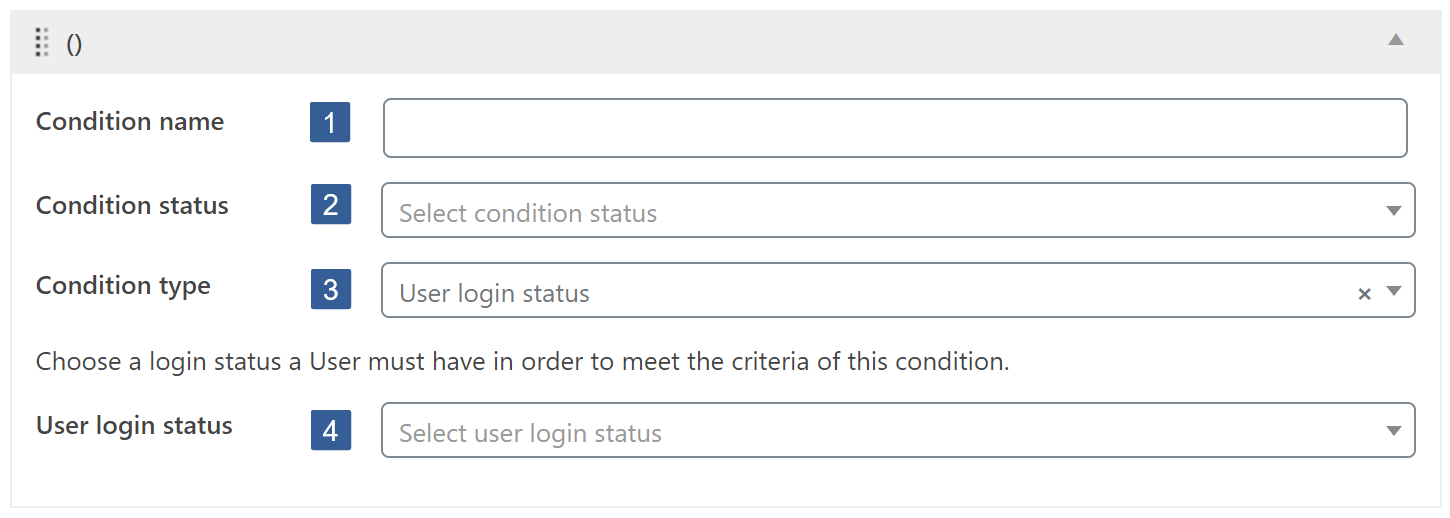
From the User login status drop down select the required login status:
- User logged in – self explanatory.
- User not logged in – self explanatory.
- First login – the user is currently within their first logged in WordPress session i.e the first time they have logged in to the site.
- Failed payment – the user is logged in and the Keap contact has any one of the iMember360, Memberships failed payment tags i.e. the tag name used to define a membership but ending in PAYF.
User Role Status
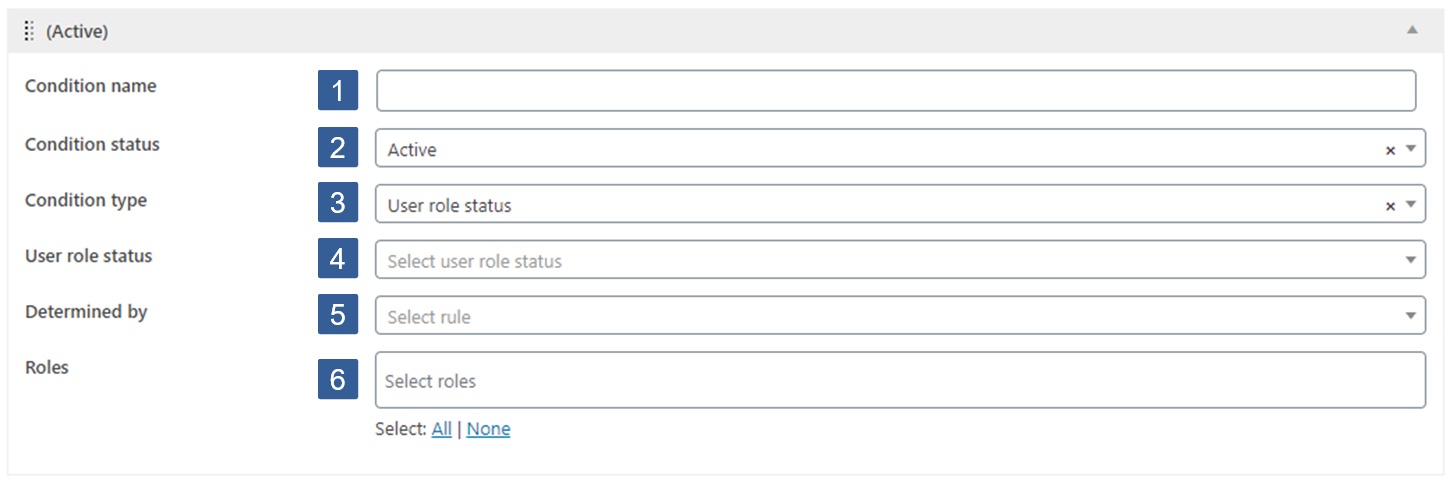
For not logged in users this condition will always evaluate as FALSE.
-
From the User role status drop down select the required status for the current logged in user. The options are:
- User has roles
- User does not have roles
-
From the Determined by drop down select whether Any or All of the roles selected should be considered when evaluating the condition for the current logged in user.
-
From the Roles drop down select the WordPress user roles to be used when evaluating the condition.
Click the drop down then scroll or start typing any consecutive characters of the user role name to refine the list and aid selection.
Then click on the required user role.
Multiple user roles can be selected as required.
Individual user roles can be removed from the selection by clicking on the x shown next to the individual user role name.
All user roles can be removed from the selection by clicking on the x shown in the far right of the drop down.
Contact Conditions
Contact Tag Status
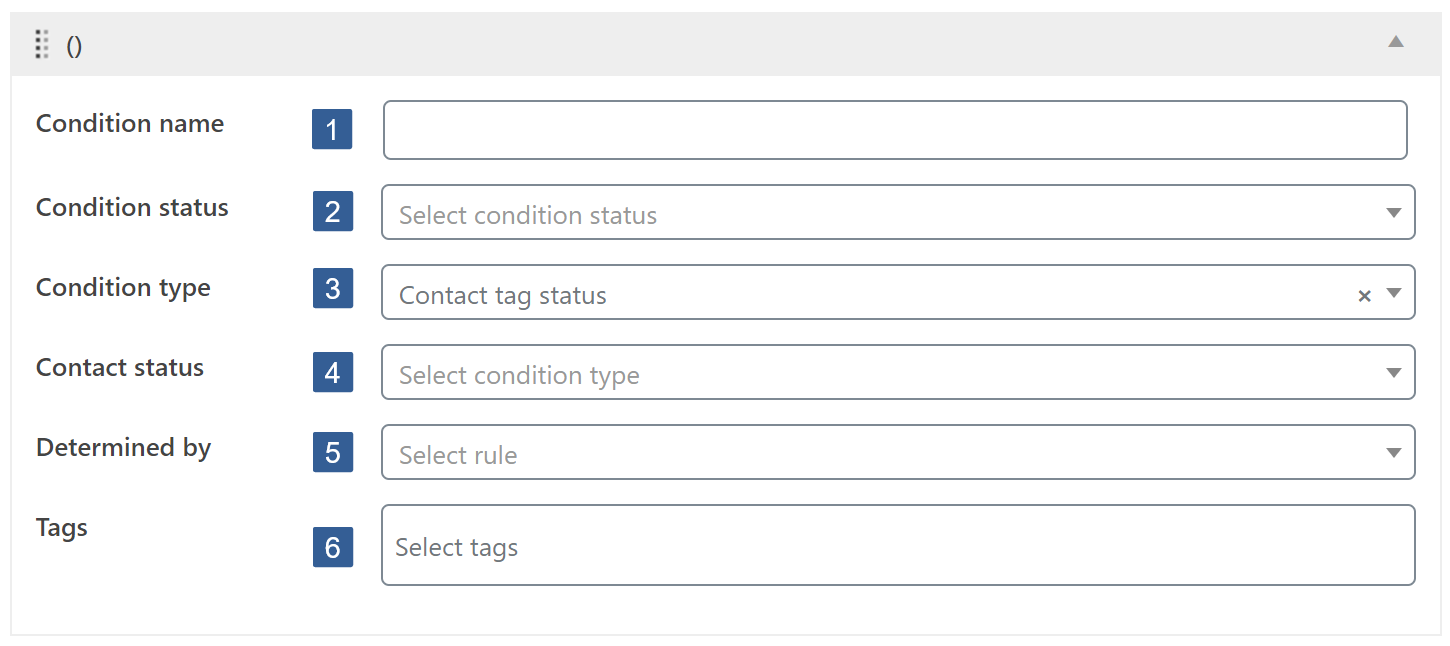
For not logged in users this condition will always evaluate as FALSE.
-
From the Contact status drop down select the required status for the contact linked to the current logged in user. The options are:
- Contact has tags
- Contact does not have tags
-
From the Determined by drop down select whether Any or All of the tags selected should be considered when evaluating the condition for the contact linked to the current logged in user.
-
From the Tags drop down select the Keap contact tags to be used when evaluating the condition.
Click the drop down then scroll or start typing any consecutive characters of the contact tag name to refine the list and aid selection.
Then click on the required tag.
Multiple tags can be selected as required.
Individual tags can be removed from the selection by clicking on the x shown next to the individual tag name.
All tags can be removed from the selection by clicking on the x shown in the far right of the drop down.
Contact Field Comparison
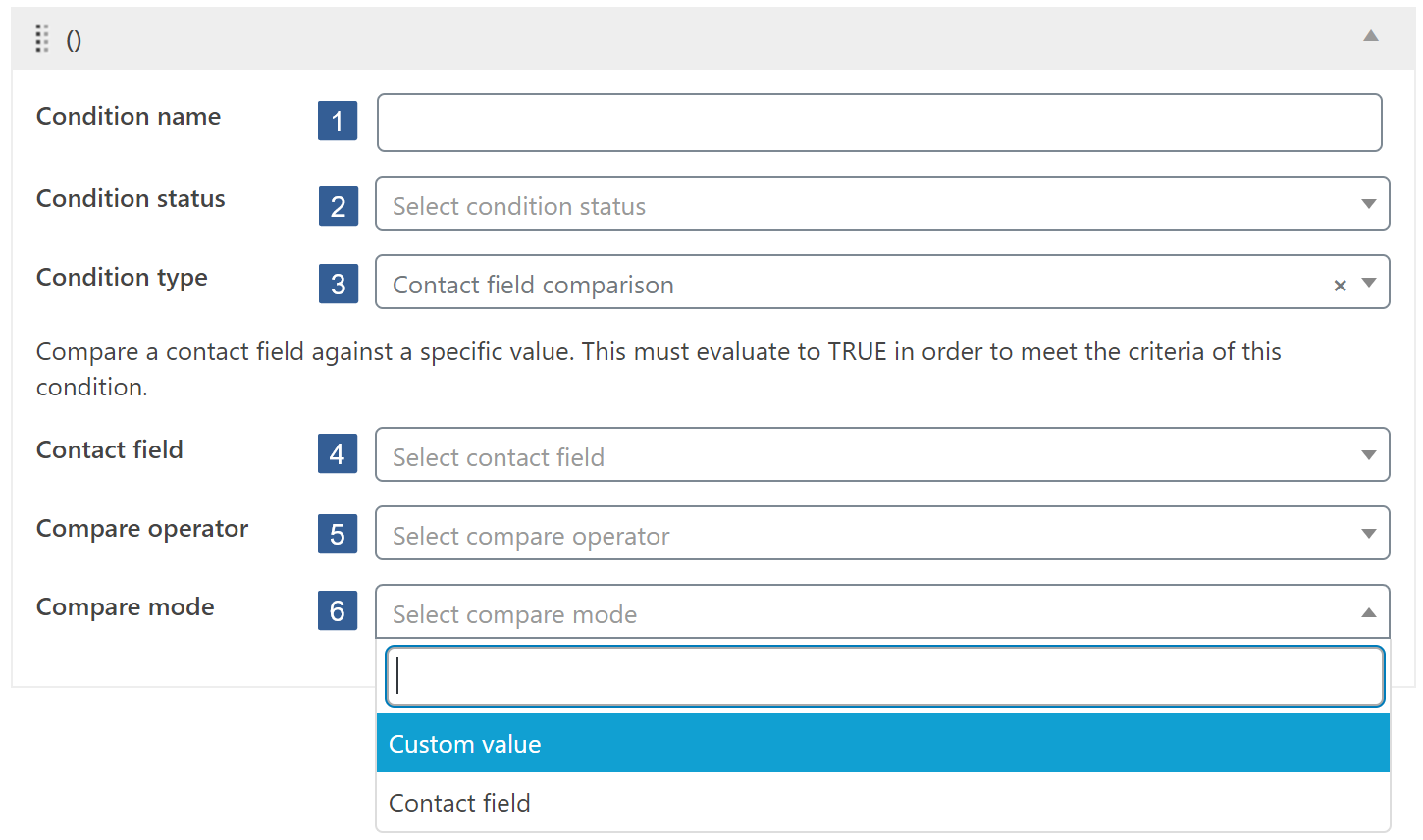
For not logged in users this condition will always evaluate as FALSE.
-
From the Contact field drop down select the Keap contact field to be used in the comparison.
Click the drop down then scroll or start typing any consecutive characters of the contact field to aid selection.
Click on the required contact field.
Irrespective of the Keap field type of the field selected the comparison is a text string compare.
-
From the Compare operator drop down select your required compare operator. Use that appropriate for your Keap field type.
The comparison operators available are:
- — i.e. None
- Equals
- Not equal
- Greater than
- Less than
- Greater or equal
- Less or equal
- Begins with
- Ends with
- Contains
- Not contains
- Is empty
- Not empty
Dependent upon your Keap field type you should use:
- Text, Text Area, Day of Week, Month, Year, Whole Number, Decimal Number, Percent, Currency, Phone Number, Social Security Number, Name, Email, State, Website, Yes/No, Dropdown, Drilldown, Radio, User – Any of the above
- List Box, User List Box – Contains or Not contains only
- Date, Date/Time – Equals, Not equal, Begins with, Ends with, Contains, Not contains, Is empty, Not empty
-
From the Compare mode drop down select your required compare mode of either Custom value or Contact field.
When Custom Value Selected

-
Within the Compare value input area specify the value you wish the selected contact field to be compared with.
When specifying the Compare value please consider the following:
- Date fields are stored within Keap in the format yyyymmdd
- Date/Time fields are stored within Keap in the format yyyymmddThh:mm:ss
When Contact Field Selected

-
From the Contact field to compare against drop down select the Keap contact field to be used in the comparison.
Click the drop down then scroll or start typing any consecutive characters of the contact field to aid selection.
Click on the required contact field.
Irrespective of the Keap field type of the field selected the comparison is a text string compare.
Code Conditions
PHP Statement
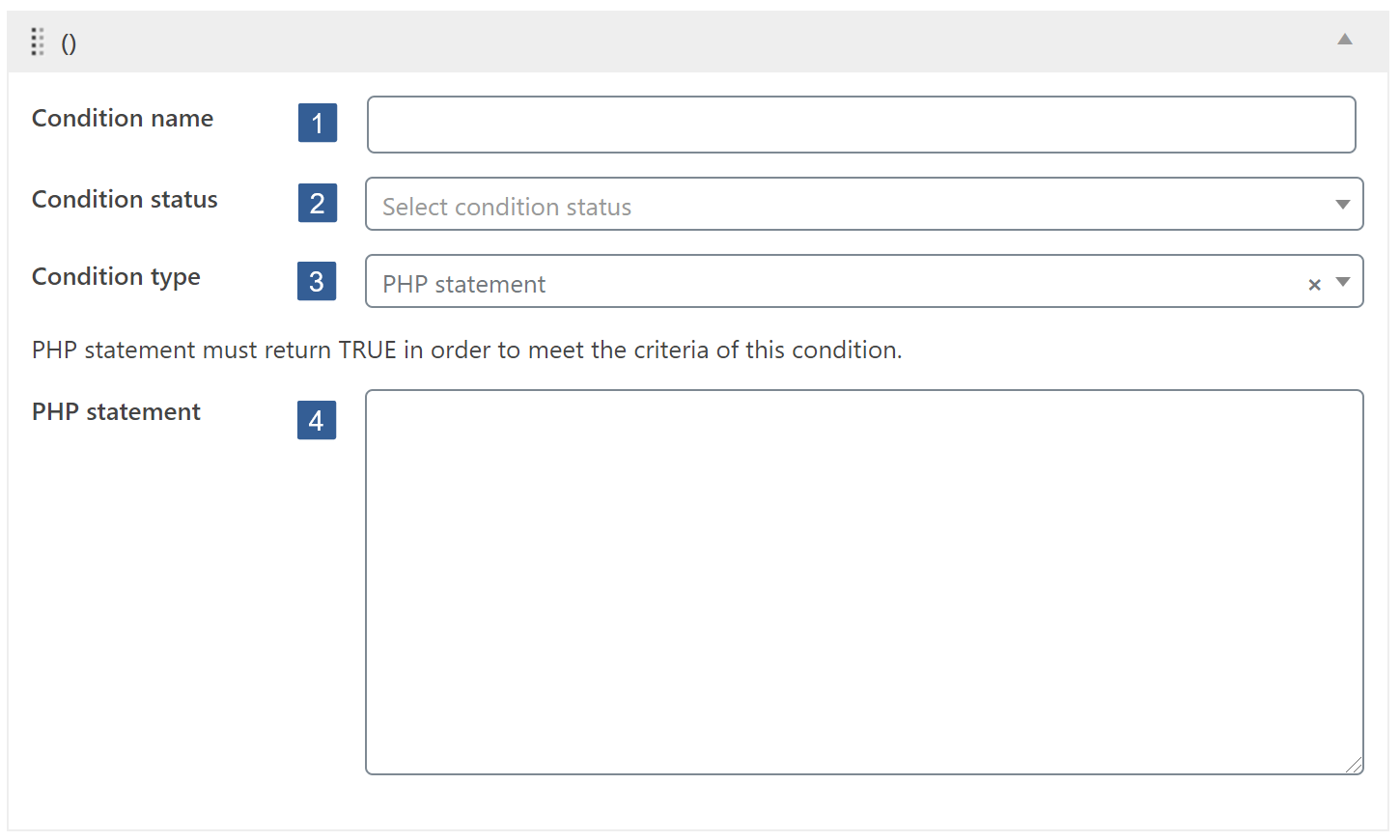
Within the PHP statement input area define the required PHP conditional statement.
Any valid PHP conditional function can be used.
You can also use any conditional tags including WordPress and WooCommerce conditional tags.
Examples
a. Statement evaluates as TRUE if the user IS on the home page.
is_front_page()
b. Any function preceded with an exclamation mark ! specifies the negative use case. Statement evaluates as TRUE if the user IS NOT on the home page.
!is_front_page()
c. Combine conditions with && (representing AND). Statement evaluates as TRUE if the user IS on the home page AND the home page is the blog page.
is_front_page() && is_home()
d. Combine conditions with || (representing OR). Statement evaluates as TRUE if the user IS on the page titled Members Dashboard OR on the page titled My Account.
is_page( 'Members Dashboard' ) || is_page( 'My Account' )
Predefined Conditional
-
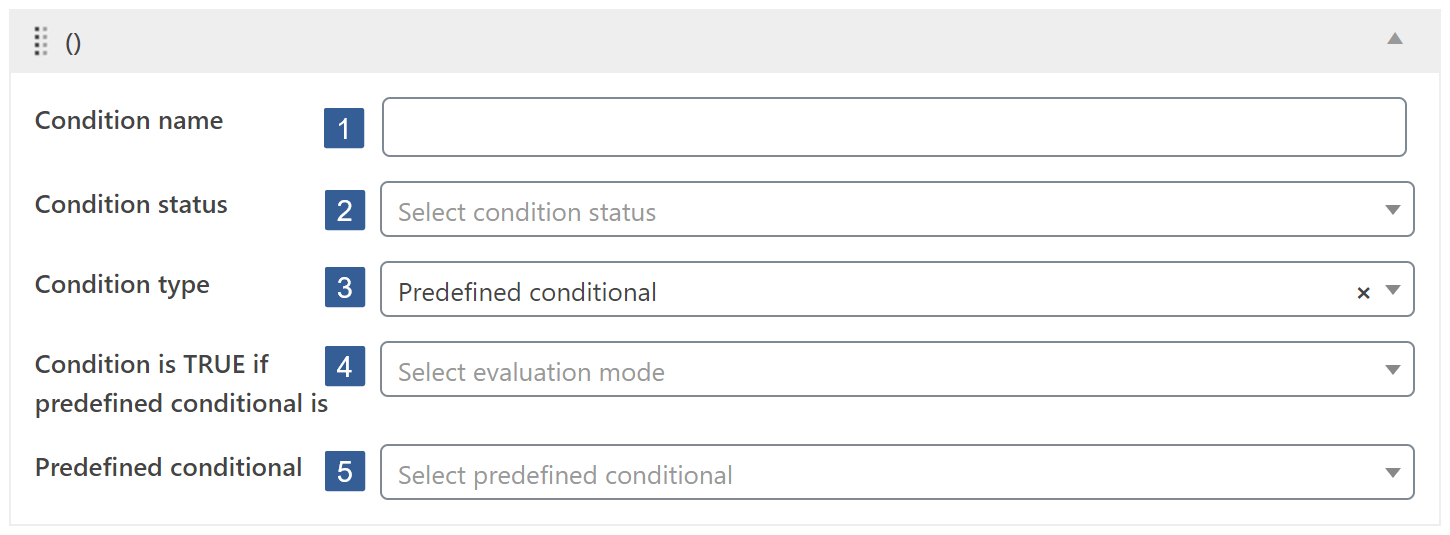
From the Condition is TRUE if predefined conditional is drop down select whether the predefined conditional selected must evaluate as True or False for this condition to evaluate as True.
-
From the Predefined conditional drop down select a previously defined conditional.
Click the drop down then scroll or start typing any consecutive characters of the conditional name to refine the list and aid selection.
Then click on the required conditional.
In the drop down list you can see if the chosen conditional is published or draft. Published means active and Draft means inactive. Only published conditionals are evaluated. Inactive i.e. draft conditionals will always be deemed to evaluate TRUE.
The purpose of this condition is both for efficiency and to permit AND and OR conditionals to be combined for situations where more complex evaluations are required.
Please be diligent when using this condition to avoid creating an endless nested conditional loop i.e a conditional that contains a second conditional where the second conditional actually includes as a Predefined conditional the other conditional.
Integration Conditions
GamiPress User Status
This GamiPress user status condition type is only available if GamiPress is installed and active.
For not logged in users this condition will always evaluate as FALSE.
-
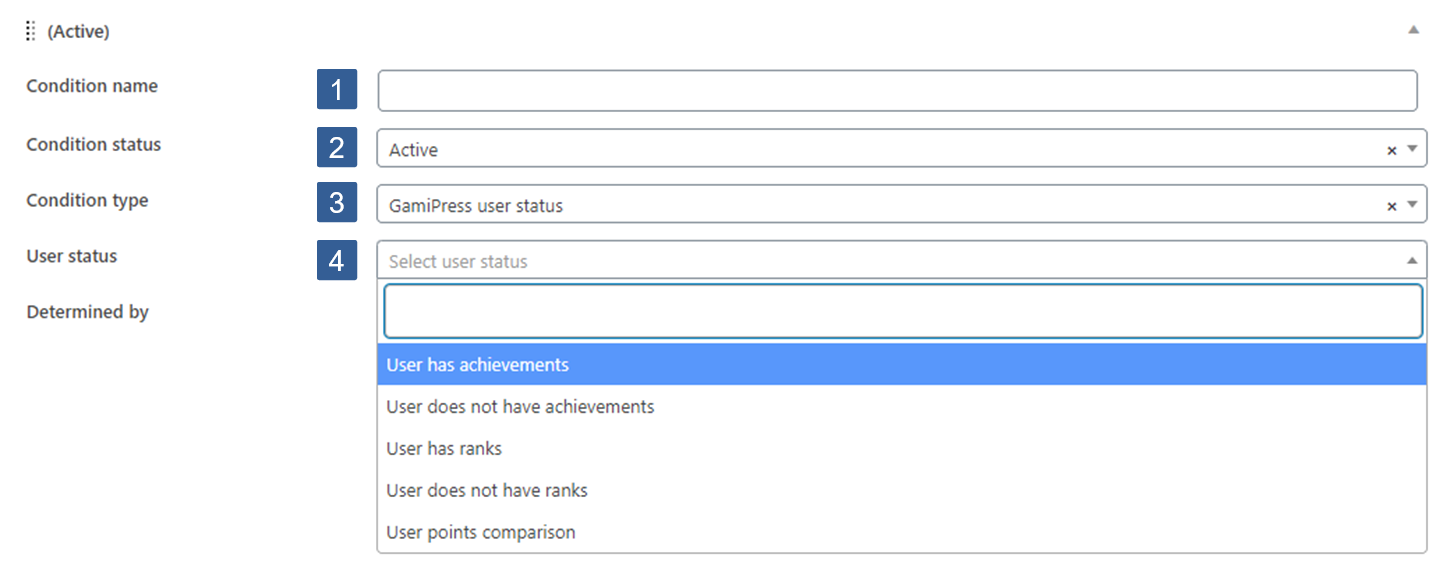
From the User status drop down select the required status for the current logged in user.
The options are:
- User has achievements
- User does not have achievements
- User has ranks
- User does not have ranks
- User points comparison
Dependent upon the selection made either Points type, Achievements or Ranks will be displayed for selection in the following steps.
When User Achievements or Ranks Selected
-
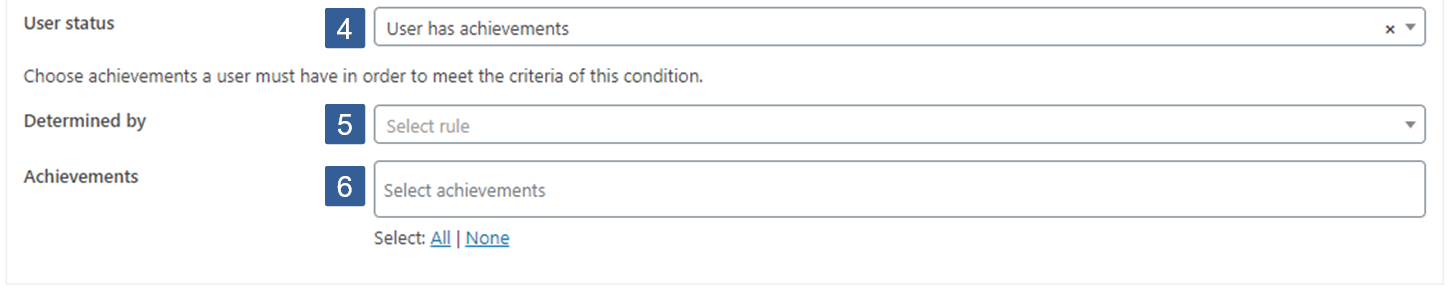
From the Determined by drop down select whether Any or All of the achievements/ranks selected should be considered when evaluating the condition for the current logged in user.
-
From the Achievements/Ranks drop down select the GamiPress achievements/ranks to be used when evaluating the condition.
Click the drop down then scroll or start typing any consecutive characters of the achievement/rank name to refine the list and aid selection.
Then click on the required achievements/ranks.
Multiple achievements/ranks can be selected as required.
Individual achievements/ranks can be removed from the selection by clicking on the x shown next to the individual achievements/ranks.
All achievements/ranks can be removed from the selection by clicking on the x shown in the far right of the drop down.
All achievements/ranks can be selected with one click using the Select: All option.
When User Points Comparison Selected

-
From the Points type drop down select the GamiPress points type to be used in the comparison.
Click the drop down then scroll or start typing any consecutive characters of the points type to aid selection.
Click on the required points type.
-
From the Compare operator drop down select your required compare operator.
The comparison operators available are:
- — (None)
- Equals
- Not equal
- Greater than
- Less than
- Greater or equal
- Less or equal
- Begins with
- Ends with
- Contains
- Not contains
- Is empty
- Not empty
-
Within the Compare value input area specify the value you wish the selected points type to be compared with.
LearnDash User Status
This LearnDash user status condition type is only available if LearnDash is installed and active. However it does not require the iMember360 LearnDash Extension to be enabled to function.
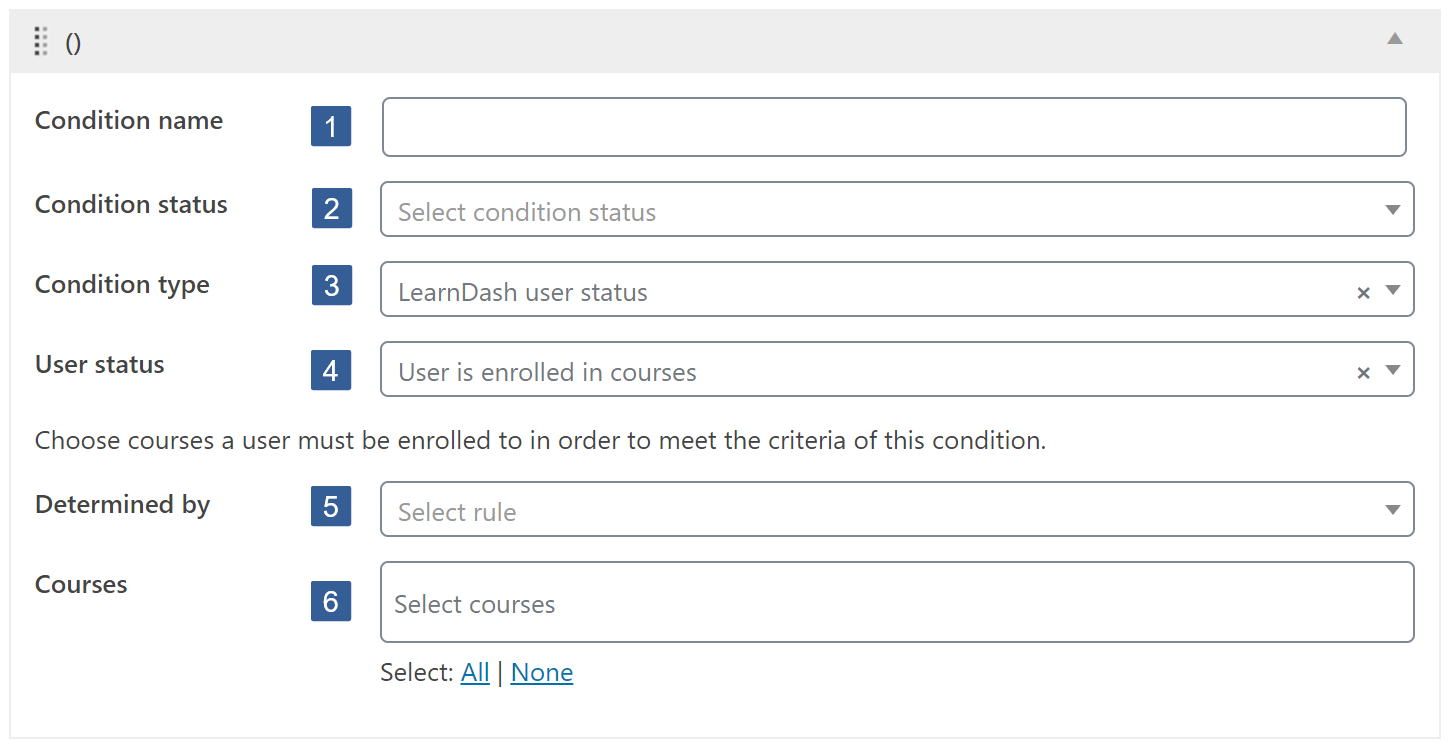
For not logged in users this condition will always evaluate as FALSE.
-
From the User status drop down select the required status for the current logged in user. The options are:
- User is enrolled in courses
- User is not enrolled in courses
- User has not started courses
- User has in progress courses
- User has completed courses
- User has not completed lessons
- User has completed lessons
- User has not completed topics
- User has completed topics
Dependent upon the selection made either Courses, Lessons, or Topics will be displayed for selection in the final drop down (step 3).
-
From the Determined by drop down select whether Any or All of the courses/lessons/topics selected should be considered when evaluating the condition for the current logged in user.
-
From the Courses/Lessons/Topics drop down select the LearnDash courses/lessons/topics to be used when evaluating the condition.
Click the drop down then scroll or start typing any consecutive characters of the course/lesson/topic name to refine the list and aid selection.
Then click on the required courses/lessons/topics.
Multiple courses/lessons/topics can be selected as required.
Individual courses/lessons/topics can be removed from the selection by clicking on the x shown next to the individual course/lesson/topic name.
All courses/lessons/topics can be removed from the selection by clicking on the x shown in the far right of the drop down.
All courses/lessons/topics can be selected with one click using the Select: All option.
WooCommerce User Status
This WooCommerce user status condition type is only available if WooCommerce is installed and active. The WooCommerce user status subscription conditions are only available if WooCommerce Subscriptions is also installed and active. However it does not require the iMember360 WooCommerce Extension to be enabled to function.
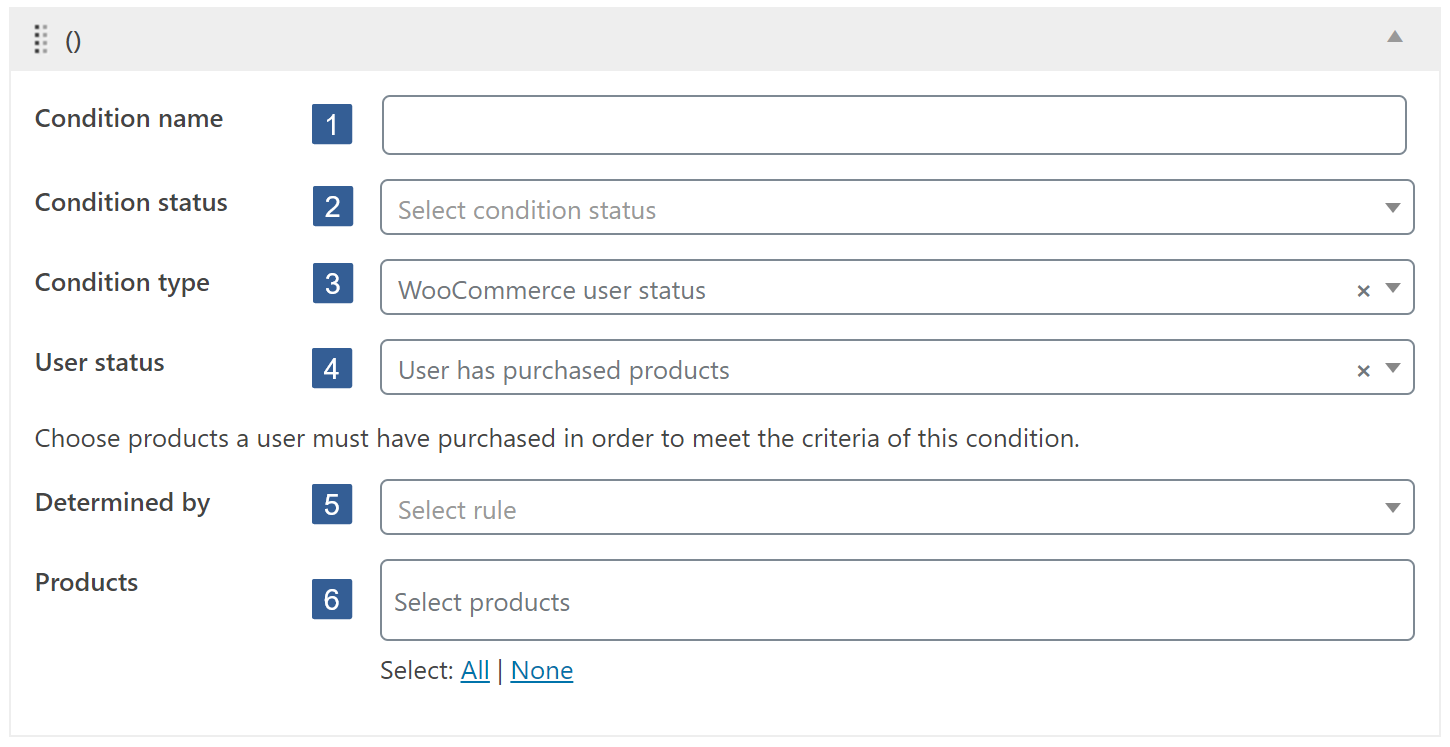
For not logged in users this condition will always evaluate as FALSE.
-
From the User status drop down select the required status for the current logged in user. The options are:
- User has purchased products
- User has not purchased products
- User has subscriptions that are pending
- User has subscriptions that are active
- User has subscriptions that are on hold
- User has subscriptions that are pending cancellation
- User has subscriptions that are cancelled
- User has subscriptions that are expired
Dependent upon the selection made either Products or Subscriptions will be displayed for selection in the final drop down (step 3).
-
From the Determined by drop down select whether Any or All of the products/subscriptions selected should be considered when evaluating the condition for the current logged in user.
-
From the Products/Subscriptions drop down select the WooCommerce products/subscriptions to be used when evaluating the condition.
Click the drop down then scroll or start typing any consecutive characters of the product/subscription name to refine the list and aid selection.
Then click on the required product/subscription.
Multiple products/subscriptions can be selected as required.
Individual products/subscriptions can be removed from the selection by clicking on the x shown next to the individual product/subscription name.
All products/subscriptions can be removed from the selection by clicking on the x shown in the far right of the drop down.
All products/subscriptions can be selected with one click using the Select: All option.
The WooCommerce products available for selection include all WooCommerce products defined in your install including but not limited to; simple, variable products, and simple and variable subscriptions but excluding grouped or external products.