Visibility Conditions
Configure visibility for Thrive Architect elements using iMember360 Conditionals and Tags.
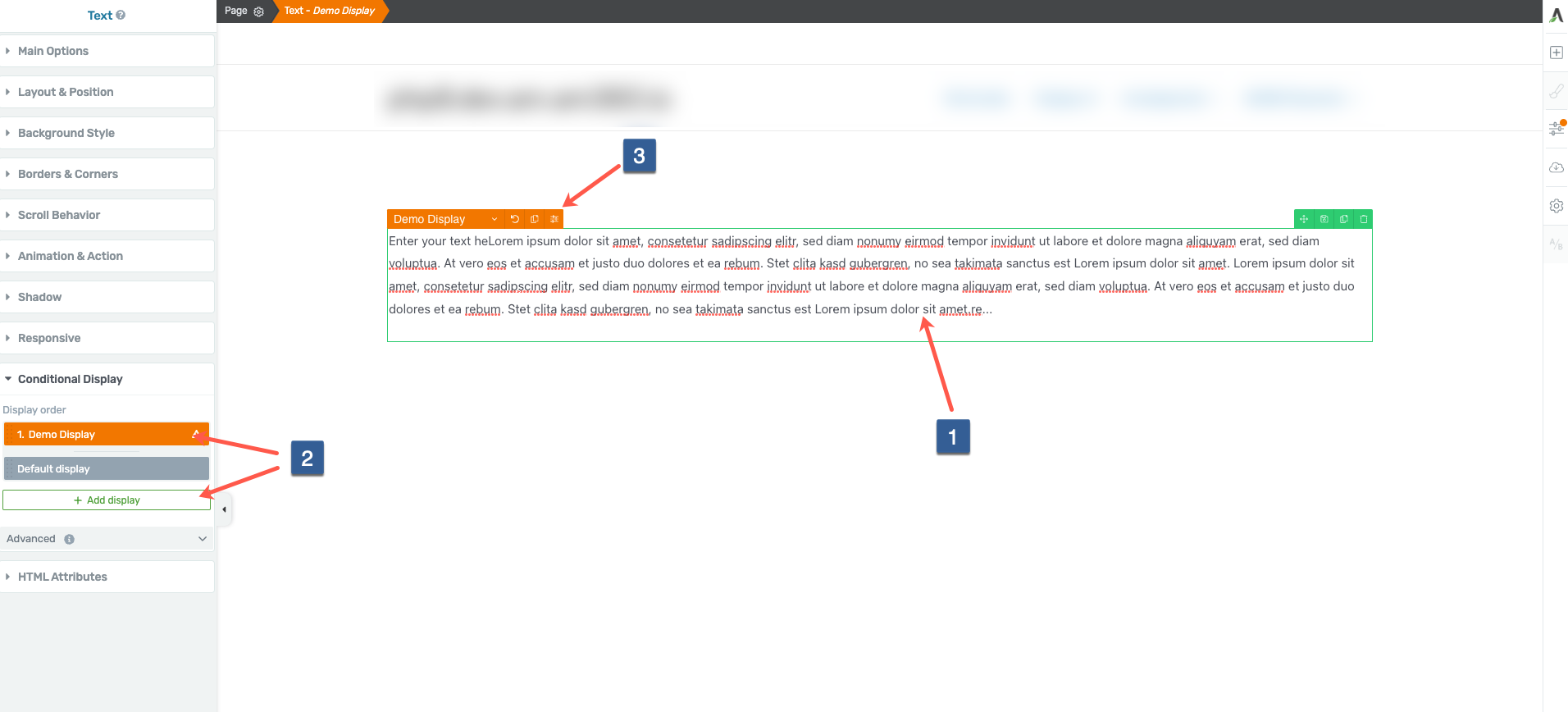
Open Thrive Architect Display Conditions
-
Click on the element you wish to set a display condition for.
-
Click on the display you want to set a condition for or add a new display first.
-
Click on the settings icon of the display.
-
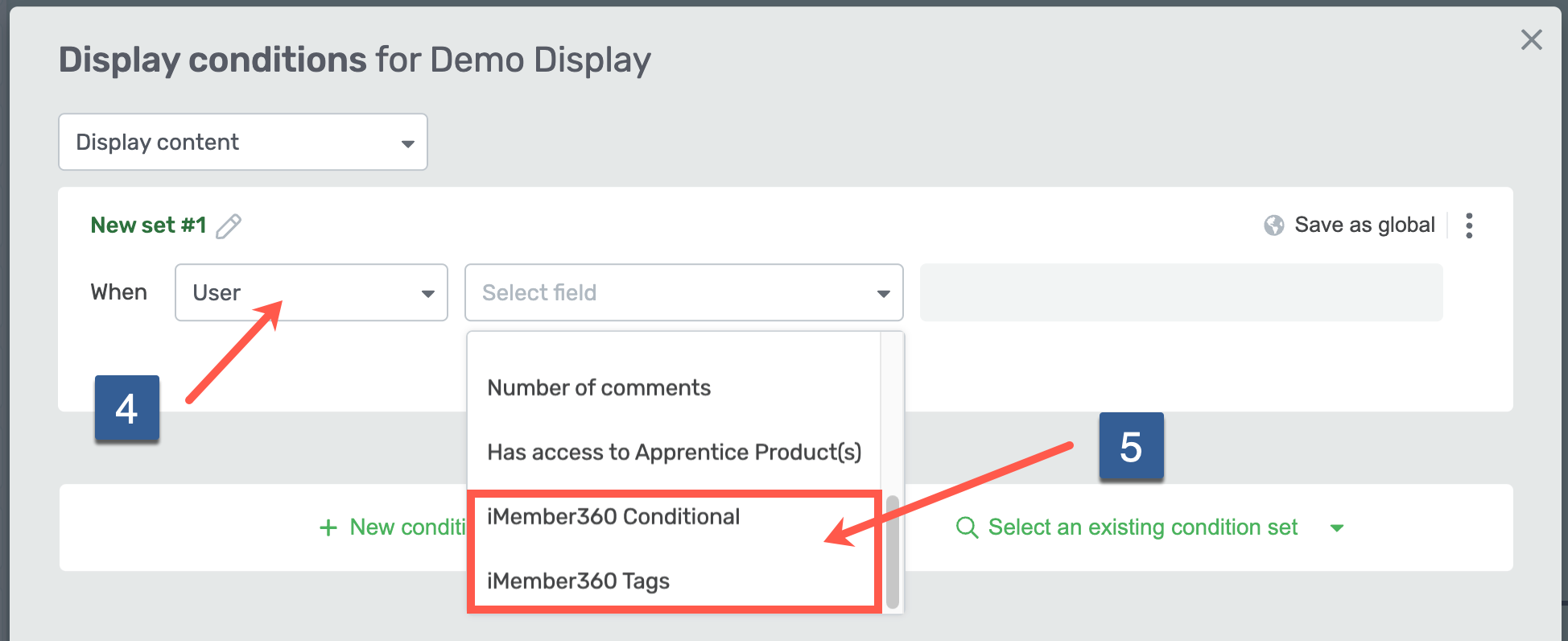
Select the User entity in the first dropdown.
-
From the Select field drop down select iMember360 Conditional or iMember360 Tags
infoElement visibility can be controlled using two distinct methods with iMember360.
We would always recommend using iMember360 Conditional as it provides the greatest flexibility regarding the conditions available to control the display of the element for personalization and segmentation purposes.
Adding/defining a Conditional is detailed at Adding Conditionals.
iMember360 Tags is primarily available to provide backward compatibility for element display conditions defined prior to Conditionals being introduced.
iMember360 Conditional
- From drop down select whether the conditional needs to evaluate as True or False to display the element.
- Select the required conditional to be evaluated.
- Once the settings have been completed ensure Save conditions is clicked to save the configuration.
iMember360 Tags

- From the drop down select whether user has any tags, user has all tags, user does not have any tags or user does not have all tags of the tags selected should be considered when evaluating the condition for the contact linked to the current logged in user.
- Select the tags to be used when evaluating the condition.
- Once the settings have been completed ensure Save conditions is clicked to save the configuration.