Visibility Conditions
Configure visibility for Cornerstone elements using iMember360 Conditionals, Keap Tags, and PHP Statements.
iMember360 Conditional

- Click on the element you wish to set a display condition for.
- Click on the Customize tab.
- Select Conditions.
- Choose Conditional in the iMember360 section in the dropdown.
- Choose the evaluation mode of the condition. If selected is true the conditional must evaluate true, if selected is false, the conditional must evaluate false.
- Select the iMember360 Conditional.
- Click on Save.
Keap Tag
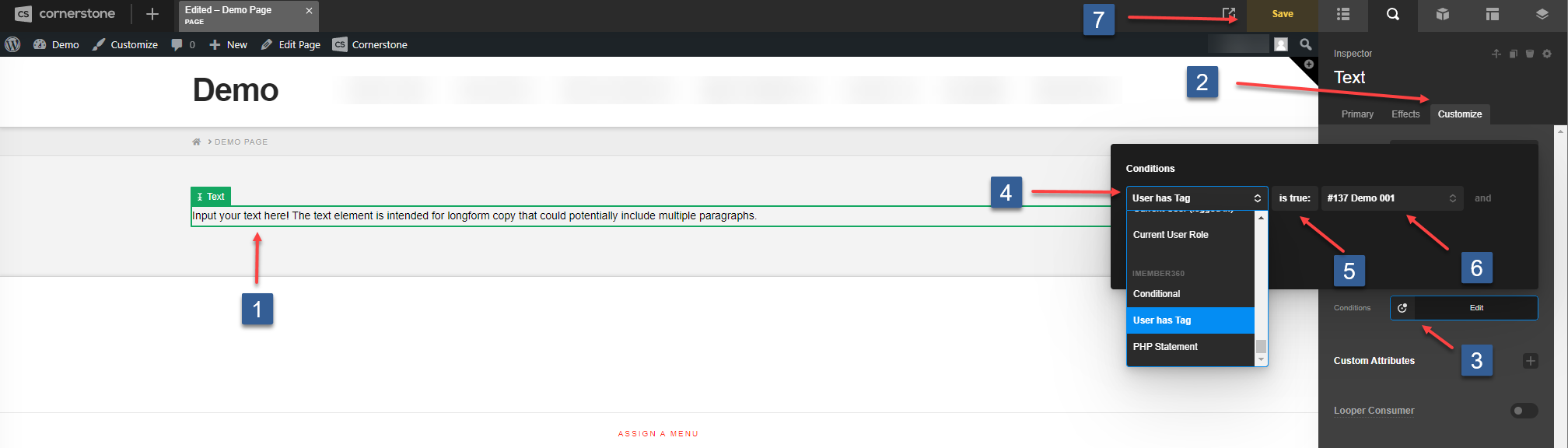
- Click on the element you wish to set a display condition for.
- Click on the Customize tab.
- Select Conditions.
- Choose User has Tag in the iMember360 section in the dropdown.
- Choose the evaluation mode of the condition. If selected is true the user must have the selected tag, if selected is false, the user must not have the selected tag.
- Select the Keap Tag.
- Click on Save.
PHP Statement
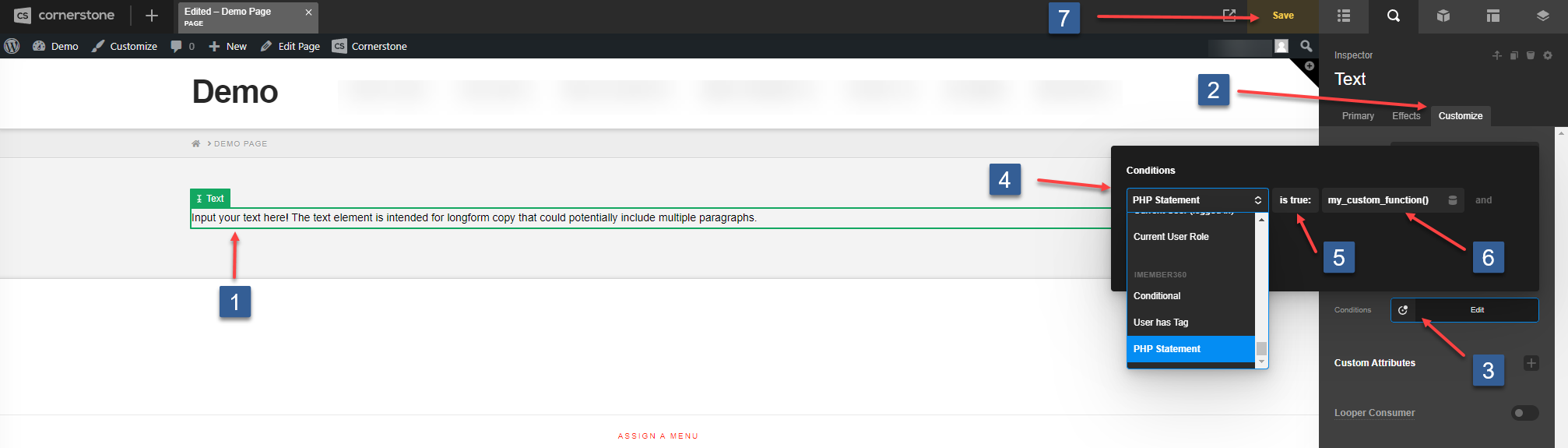
- Click on the element you wish to set a display condition for.
- Click on the Customize tab.
- Select Conditions.
- Choose PHP Statement in the iMember360 section in the dropdown.
- Choose the evaluation mode of the condition. If selected is true the PHP Statement must evaluate true, if selected is false, the PHP Statement must evaluate false.
- In the PHP Statement input area define the required PHP conditional statement. Any valid PHP conditional function can be used.
- Click on Save.