Widget Visibility
Overview
When using iMember360 you can dynamically control the display of any widget to personalize and segment your content.
WordPress widget visibility can be controlled by iMember360 Widget Control using conditionals based upon:
Contact Tag Status – Conditions based on Keap contact tags.
- Contact has any or all of the tags selected
- Contact does not have any or all of the tags selected
Contact Field Comparison – Conditions based on Keap contact field values.
- Contact has a contact field that compares with a value
- Contact has a contact field that compares with another of their contact fields
User Login Status – Conditions based on WordPress login state.
- User is logged in
- User is not logged in
- User has failed payment status
- It is the user's first login
User Role Status – Conditions based on WordPress user roles.
- User has any or all of the roles selected
- User does not have any or all of the roles selected
PHP Statement – Conditions based on custom PHP code.
- Any WordPress conditional statement
- Any WooCommerce conditional statement
Predefined Conditional – Reference another conditional.
- Predefined Conditional evaluates to true
- Predefined Conditional evaluates to false
GamiPress User Status – Conditions based on GamiPress achievements and ranks.
- User has any or all of the achievements selected
- User does not have any or all of the achievements selected
- User has any or all of the ranks selected
- User does not have any or all of the ranks selected
- User has a points type total that compares with a value
LearnDash User Status – Conditions based on LearnDash course progress.
- User is enrolled in any or all of the courses selected
- User is not enrolled in any or all of the courses selected
- User has not started any or all of the courses selected
- User has in progress any or all of the courses selected
- User has completed any or all of the courses selected
- User has not completed any or all of the lessons selected
- User has completed any or all of the lessons selected
- User has not completed any or all of the topics selected
- User has completed any or all of the topics selected
WooCommerce User Status – Conditions based on WooCommerce purchases.
- User has purchased any or all of the products selected
- User has not purchased any or all of the products selected
- User has pending status for any or all of the subscriptions selected
- User has active status for any or all of the subscriptions selected
- User has on hold status for any or all of the subscriptions selected
- User has pending cancellation status for any or all of the subscriptions selected
- User has cancelled status for any or all of the subscriptions selected
- User has expired status for any or all of the subscriptions selected
…and any multiples and combinations of the above.
Configuration & Settings
Widget visibility can be controlled using two distinct methods with iMember360.
The most advanced way is using Conditional mode. However an Individual mode is also supported.
We would always recommend using Conditional mode as it provides the greatest flexibility regarding the conditions available to control the display of the widget for personalization and segmentation.
Adding/defining a Conditional is detailed at Adding Conditionals.
Individual mode is primarily available to provide backward compatibility for widget controls defined prior to Conditionals being introduced.
Conditional Mode
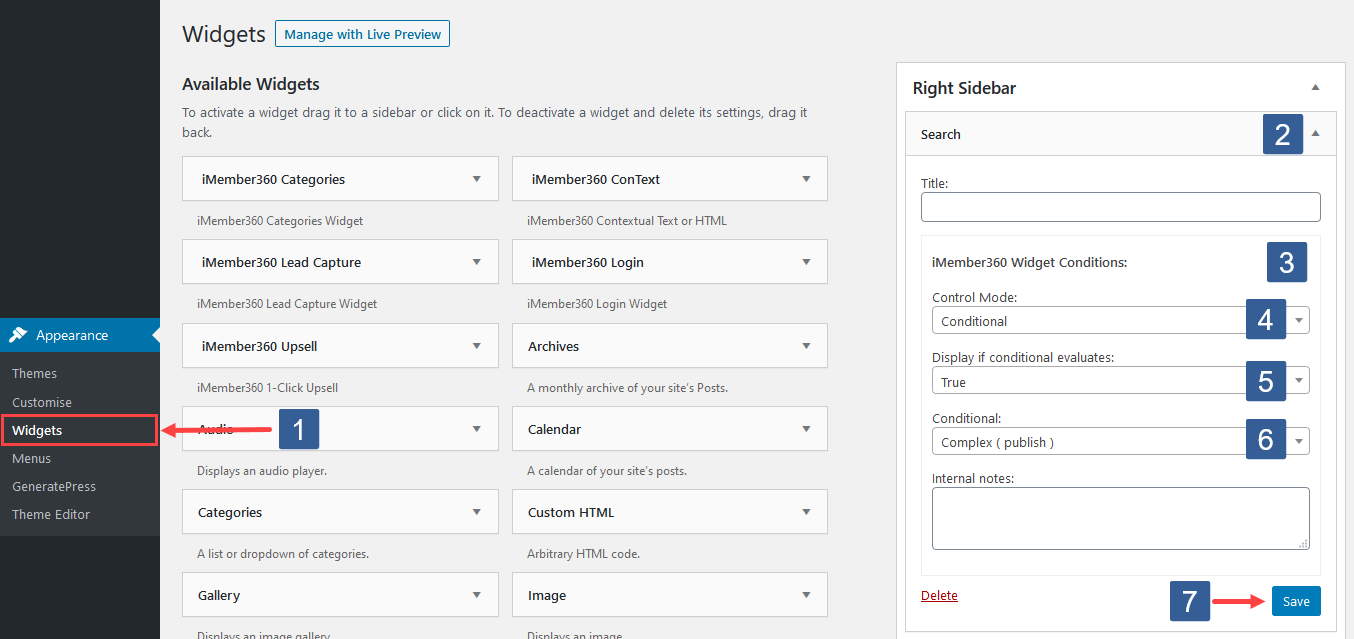
Steps to specify widget visibility using conditional mode
- In the WordPress administrator main navigation click Appearance, Widgets.
- Select the required widget.
- Locate the iMember360 Widget Conditions panel.
- From the Control mode drop down ensure Conditional is selected.
- From the Display if the conditional evaluates drop down select whether the conditional needs to evaluate as True or False to display the widget.
- From the Conditional drop down select the required conditional to be evaluated. Active conditionals are shown with the suffix (publish).
- Click Save to save the configuration.
Individual Mode
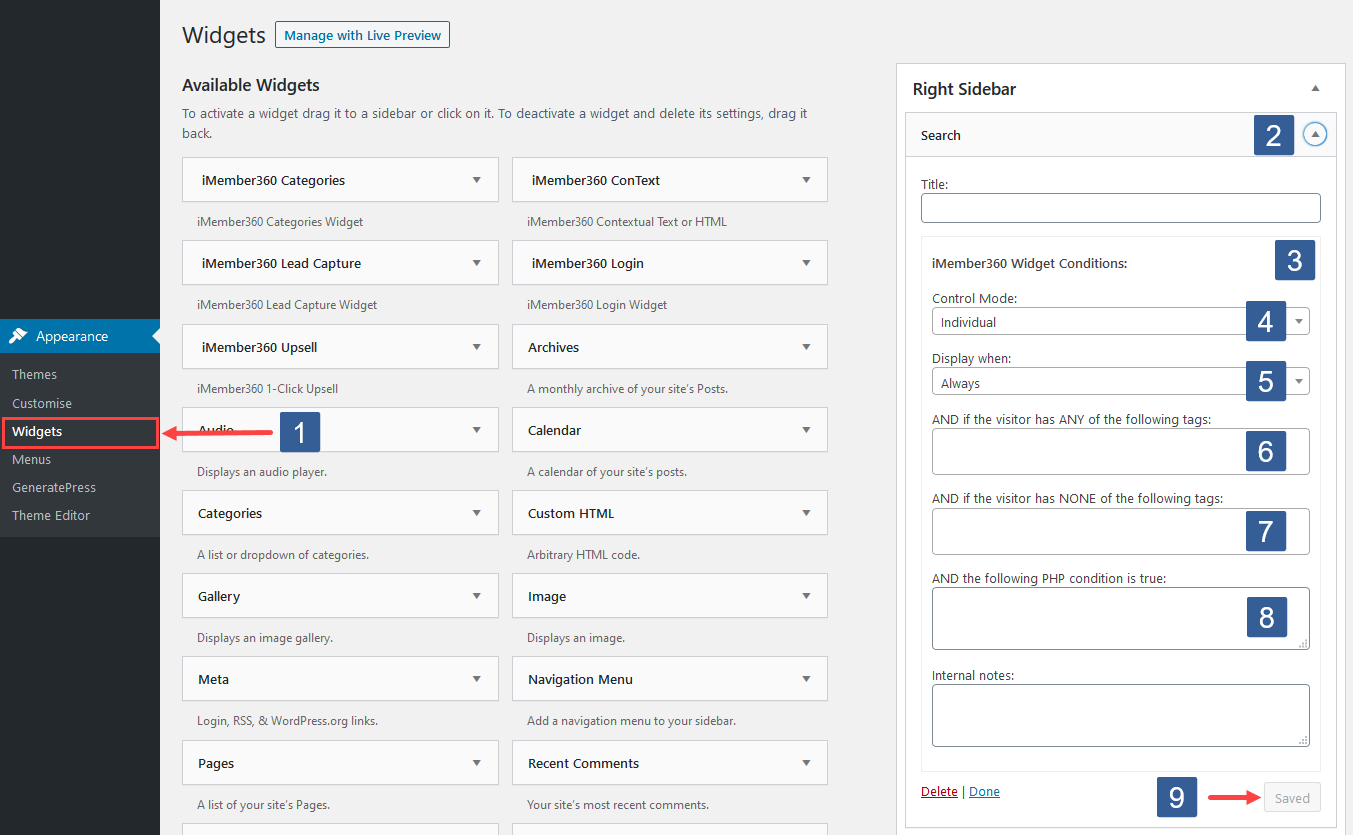
Steps to specify widget visibility using individual mode
-
In the WordPress administrator main navigation click Appearance, Widgets.
-
Select the required widget.
-
Locate the iMember360 Widget Conditions panel.
-
From the Control mode drop down ensure Individual is selected.
-
Set the widget Display when setting to Always, Is Logged In, Not Logged In or Never.
The default Display when setting is to Always display the selected widget.
warningThe Display when setting works in conjunction with the other iMember360 visibility conditions of AND if the visitor has ANY of the following tags:, AND if the visitor has NONE of the following tags: and the AND the following PHP condition is true: to determine the widget visibility.
They work as AND conditions. If any conditions evaluate as FALSE the widget will not be visible.
If Never is selected as the Display when setting irrespective of other conditions the block will never be shown. The purpose of this Never setting is to keep the widget settings in place should you wish to effectively disable the widget.
-
From the AND if the visitor has ANY of the following tags: drop down select the Keap tag(s) the user should have for this condition to evaluate as TRUE. The user can have any of the tags specified for the condition to evaluate as TRUE.
- Click in the selection area and start typing part of the tag name to refine the list. Then click on the required tag.
- Multiple tags can be selected.
- Individual tags can be removed from the selection by clicking on the x shown next to the individual tag name.
-
From the AND if the visitor has NONE of the following tags: drop down select the Keap tag(s) the user should not have for the condition to evaluate as TRUE. The user must have none of the tags specified for the condition to evaluate as TRUE.
- Click in the selection area and start typing part of the tag name to refine the list. Then click on the required tag.
- Multiple tags can be selected.
- Individual tags can be removed from the selection by clicking on the x shown next to the individual tag name.
-
Set visibility conditions for the WordPress Widget based upon a conditional PHP statement.
In the AND the following PHP condition is true: input area define the PHP conditional statement. Any valid PHP conditional function can be used. iMember360 has conditional functions that can be used, e.g. i4w_has_tags()
- HAS tag
- HAS ANY (string)
- HAS ANY (array)
- HAS ALL (string)
- HAS ALL (array)
- NOT HAVE
- Combined AND
- Combined OR
- WordPress
Statement evaluates as TRUE if the user HAS tag 123.
PHPi4w_has_tags( '123' )Statement evaluates as TRUE if the user HAS tag 123 OR 234.
PHPi4w_has_tags( '123,234' )Statement evaluates as TRUE if the user HAS tag 123 OR 234.
PHPi4w_has_tags( array(123,234) )Statement evaluates as TRUE if the user HAS tag 123 AND 234.
PHPi4w_has_tags( '123,234', 'all' )Statement evaluates as TRUE if the user HAS tag 123 AND 234.
PHPi4w_has_tags( array(123,234), 'all' )Any function preceded with an exclamation mark ! specifies the negative use case.
Statement evaluates as TRUE if the user DOES NOT HAVE tag 123.
PHP!i4w_has_tags( '123' )Combine conditions with && (representing AND).
Statement evaluates as TRUE if the user HAS tag 123 AND DOES NOT HAVE tag 234.
PHPi4w_has_tags( '123' ) && !i4w_has_tags( '234' )Combine conditions with || (representing OR).
Statement evaluates as TRUE if the user HAS tag 123 OR DOES NOT HAVE tag 234.
PHPi4w_has_tags( '123' ) || !i4w_has_tags( '234' )You can also use WordPress Conditional Tags and WooCommerce Conditional Tags.
Statement evaluates as TRUE if this is the home page.
PHPis_home() -
Once the settings have been completed ensure Save is clicked to save the configuration.