Creating Membership Levels
Map Keap tags to membership levels and configure member redirects.
Go to iMember360 → Memberships to manage your membership levels.
Creating a New Membership Level
Click Create New Membership Level to add a new membership.
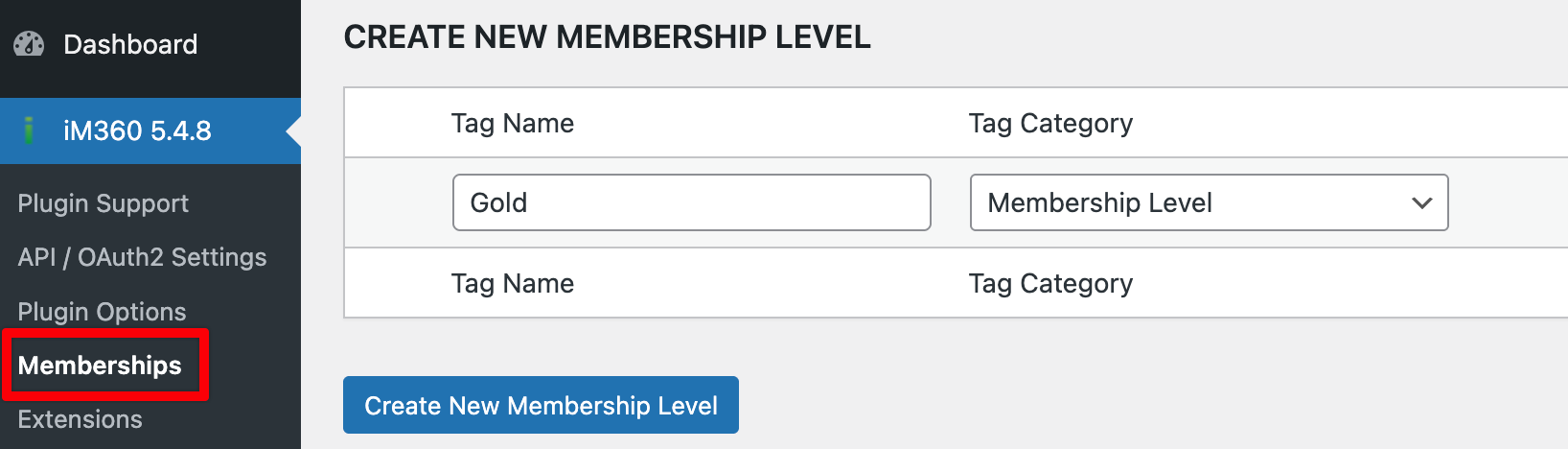
| Field | Description |
|---|---|
| Tag Name | Name for your membership (e.g., "Gold") |
| Tag Category | Select "Membership Level" |
Automatic Tag Creation
When you create a membership level here, iMember360 automatically creates both required tags in Keap:
- The membership tag (e.g., "Gold")
- The corresponding PAYF tag (e.g., "GoldPAYF")
Alternatively, you can create both tags manually in Keap first, then select the membership tag from the dropdown below.
Configuring Membership Levels
After creating membership levels, configure their settings in the table.
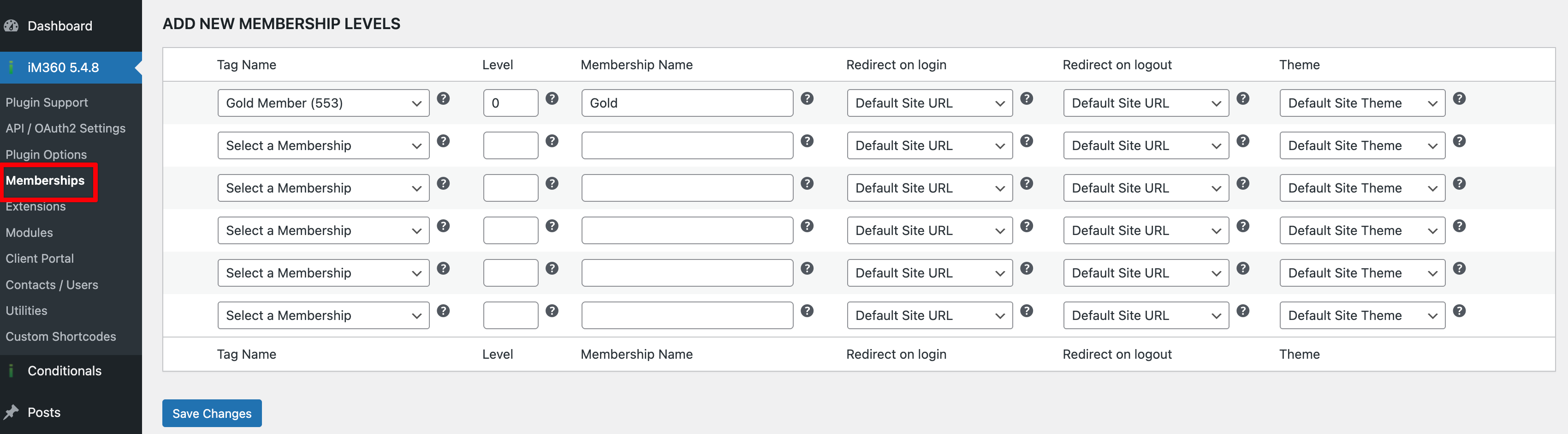
| Field | Description |
|---|---|
| Tag Name | Select the membership tag from Keap |
| Level | Set hierarchy (0 for independent levels, 1-2-3 for hierarchical) |
| Membership Name | Display name visible to members |
| Redirect on login | WordPress page to redirect members to after login |
| Redirect on logout | WordPress page to redirect members to after logout |
| Theme | WordPress theme to apply for this membership level |
Level Configuration
- Use 0 for all levels if memberships should be independent (recommended)
- Use 1, 2, 3... if higher levels should access lower level content
- Do not mix 0 with other numbers
Missing Tags
If no tags appear in the dropdown, verify your Keap setup includes both the membership tag and its PAYF counterpart (e.g., "Gold" + "GoldPAYF").