Ranks
For all ranks (except the lowest priority rank for each rank type) you can specify rank requirements based upon Keap contact tags or contact field values. You can also trigger Keap actions when ranks are earned.
Rank Requirements by Contact Tags
It is not possible to add rank requirements to the lowest priority rank for each rank type.
- When editing an individual rank within the Rank Requirements panel click Add New Rank Requirement.

-
Click on the When dropdown, scroll, and in the iMember360 section click to select Contact has tag(s).
-
In the dropdown select whether the user should have either Any or All of the tags specified to complete the rank requirement.
-
In the dropdown select the Keap tag(s) the user should have.
-
Enter your own label. This is not compulsory and will be automatically created by GamiPress and iMember360 if left blank.
infoWhen subsequently editing the Rank Requirements the label is not automatically updated and must be edited manually.
-
Click Save All Rank Requirements.
Rank Requirements by Contact Field
It is not possible to add rank requirements to the lowest priority rank for each rank type.
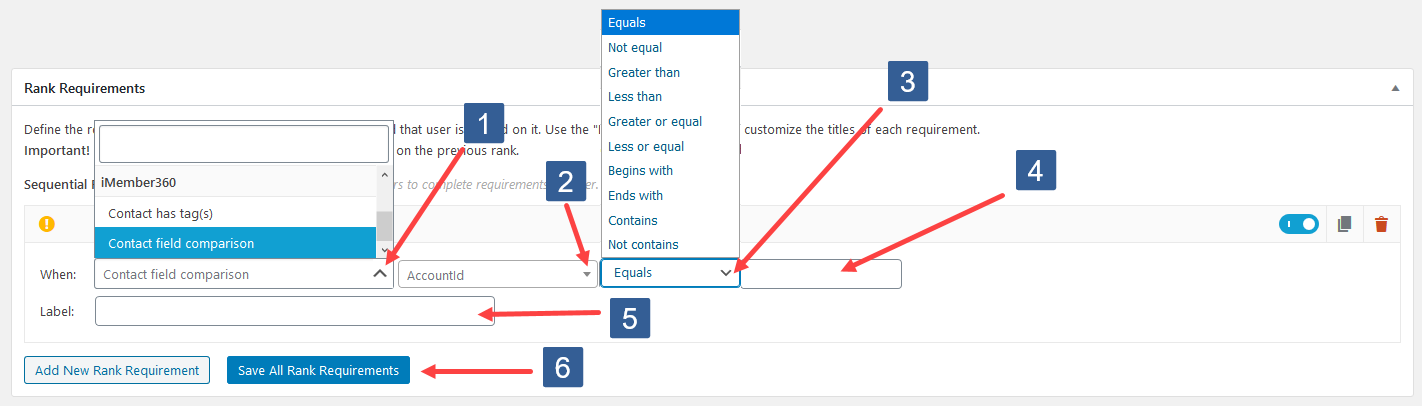
- When editing an individual rank within the Rank Requirements panel click Add New Rank Requirement.
-
Click on the When dropdown, scroll, and in the iMember360 section click to select Contact field comparison.
-
In the dropdown select the Keap contact field to be used for the comparison.
-
In the dropdown select the comparison operator.
-
Specify the value to be used for comparison. If the comparison to this value evaluates to true the rank requirement is completed.
infoWhen entering a date it should be specified in the format that Keap stores the date i.e. yyyymmdd
-
Enter your own label. This is not compulsory and will be automatically created by GamiPress and iMember360 if left blank.
infoWhen subsequently editing the Rank Requirements the label is not automatically updated and must be edited manually.
-
Click Save All Rank Requirements.
Rank Earned Actions
-
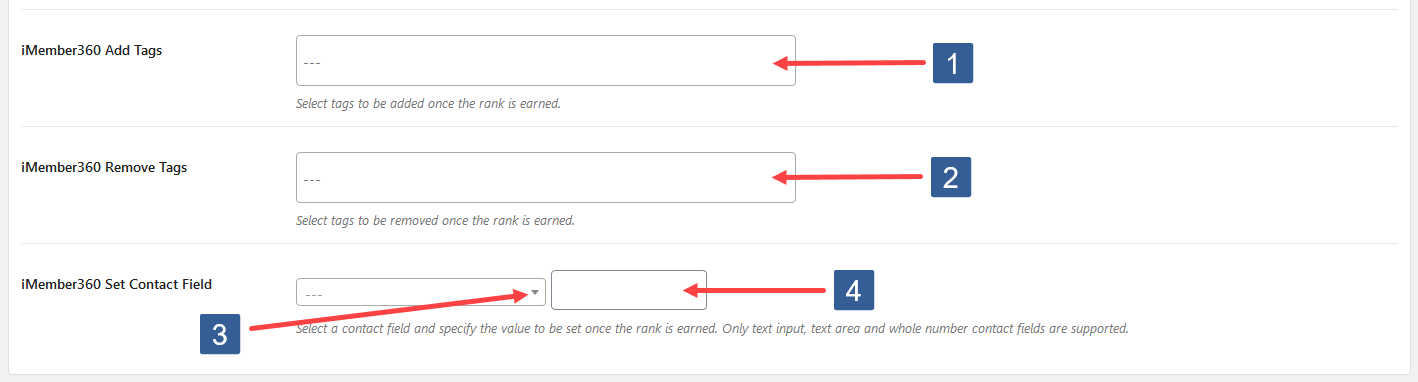
When editing an individual rank within the Rank Data panel in the iMember360 Add Tags dropdown select the Keap tag(s) to be added when the rank is earned.
-
In the iMember360 Remove Tags dropdown select the Keap tag(s) to be removed when the rank is earned.
infoRemove tags are processed before add tags to ensure that any Keap campaign goals can be triggered appropriately.
-
In the iMember360 Set Contact Field dropdown select the Keap field to set to the value specified in step 4.
infoOnly Keap text, text area and whole number fields are supported and shown for selection.
-
Specify the value to be set for the contact field.
-
Ensure to click Update to save the rank changes.
The various Keap actions will only be executed for the lowest priority rank when that rank is set from within the WordPress User Profile. They are not executed when GamiPress applies the lowest priority rank as the default rank to all users.
These Keap actions are only applied when the rank is earned. If the rank is revoked in any way the actions are not reversed.