Points
For all point types you can award or deduct points based upon Keap contact tags or contact field values. You can also store point totals in Keap contact fields.
Award Points by Contact Tags

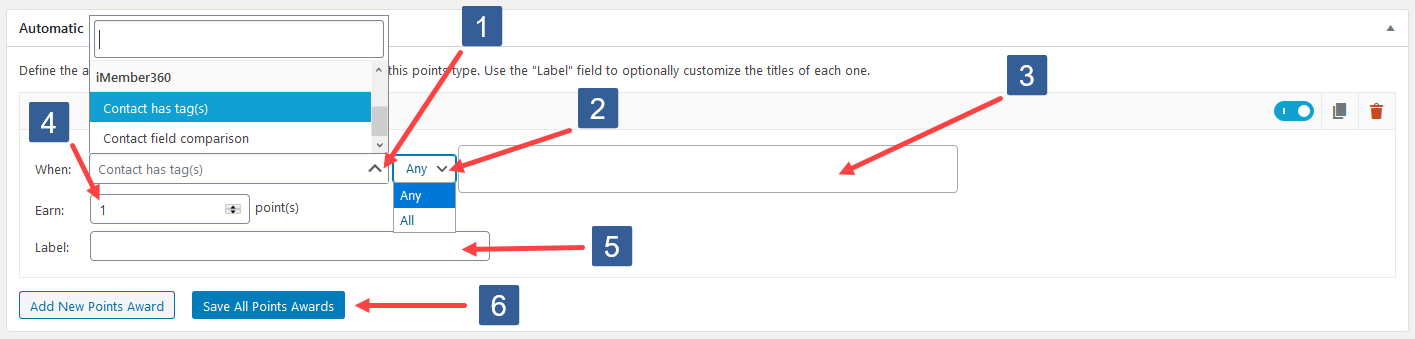
- When editing a point type within the Automatic Points Award panel click Add New Points Award.
-
Click on the When dropdown, scroll, and in the iMember360 section click to select Contact has tag(s).
-
In the dropdown select whether the user should have either Any or All of the tags specified to earn the award.
-
In the dropdown select the Keap tag(s) the user should have.
-
In the Earn input field specify the number of point types to be awarded when the contact has the required tag(s).
infoThis type of iMember360 award can only be earned once if the logged in user satisfies the contact tag condition.
-
Enter your own label. This is not compulsory and will be automatically created by GamiPress and iMember360 if left blank.
infoWhen subsequently editing the Automatic Points Awards the label is not automatically updated and must be edited manually.
-
Click Save All Points Awards.
Award Points by Contact Field
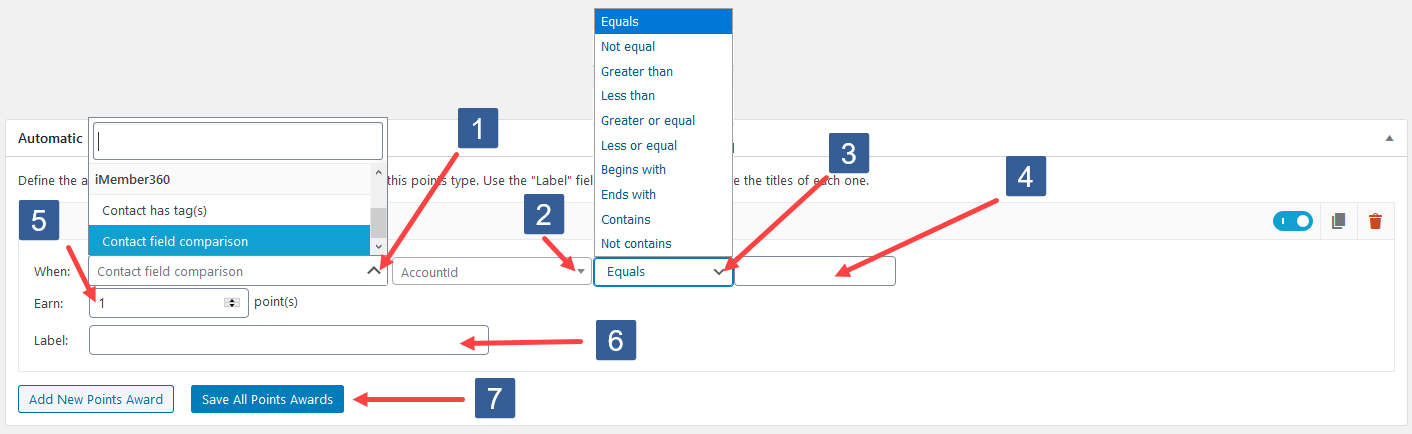
- When editing a point type within the Automatic Points Award panel click Add New Points Award.
-
Click on the When dropdown, scroll, and in the iMember360 section click to select Contact field comparison.
-
In the dropdown select the Keap contact field to be used for the comparison.
-
In the dropdown select the comparison operator.
-
Specify the value to be used for comparison.
infoWhen entering a date it should be specified in the format that Keap stores the date i.e. yyyymmdd
-
In the Earn input field specify the number of point types to be awarded when the contact field comparison evaluates to true.
infoThis type of iMember360 award can only be earned once if the logged in user satisfies the contact field condition.
-
Enter your own label. This is not compulsory and will be automatically created by GamiPress and iMember360 if left blank.
infoWhen subsequently editing the Automatic Points Awards the label is not automatically updated and must be edited manually.
-
Click Save All Points Awards.
Deduct Points by Contact Tags

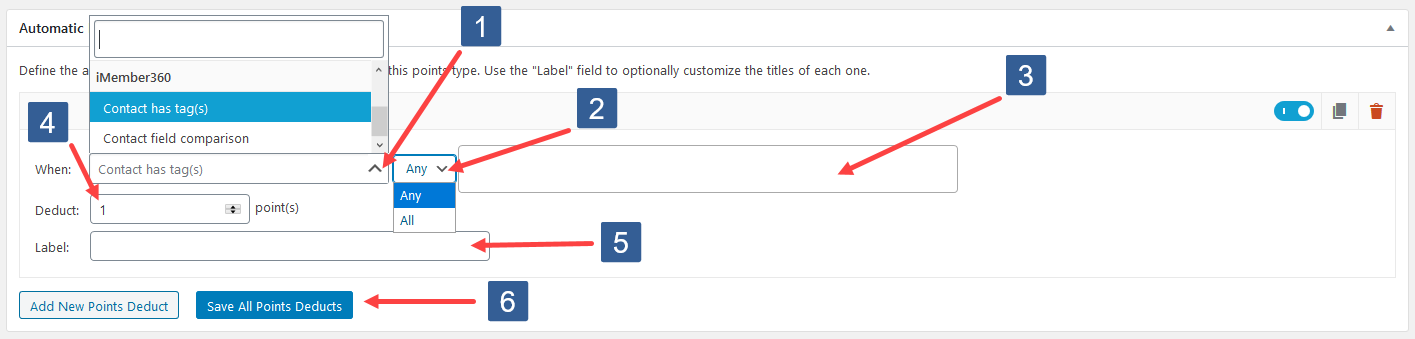
- When editing a point type within the Automatic Points Deducts panel click Add New Points Deduct.
-
Click on the When dropdown, scroll, and in the iMember360 section click to select Contact has tag(s).
-
In the dropdown select whether the user should have either Any or All of the tags specified to trigger the deduction.
-
In the dropdown select the Keap tag(s) the user should have.
-
In the Deduct input field specify the number of point types to be deducted when the contact has the required tag(s).
infoThis type of iMember360 deduction can only occur once if the logged in user satisfies the contact tag condition.
-
Enter your own label. This is not compulsory and will be automatically created by GamiPress and iMember360 if left blank.
infoWhen subsequently editing the Automatic Points Deducts the label is not automatically updated and must be edited manually.
-
Click Save All Points Deducts.
Deduct Points by Contact Field
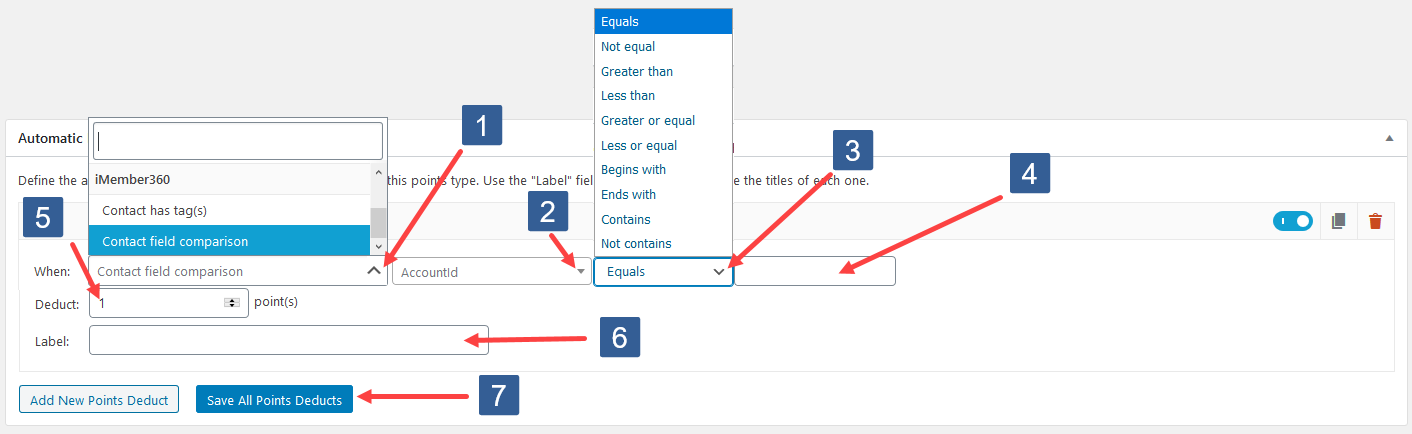
- When editing a point type within the Automatic Points Deducts panel click Add New Points Deduct.
-
Click on the When dropdown, scroll, and in the iMember360 section click to select Contact field comparison.
-
In the dropdown select the Keap contact field to be used for the comparison.
-
In the dropdown select the comparison operator.
-
Specify the value to be used for comparison.
infoWhen entering a date it should be specified in the format that Keap stores the date i.e. yyyymmdd
-
In the Deduct input field specify the number of point types to be deducted when the contact field comparison evaluates to true.
infoThis type of iMember360 deduction can only occur once if the logged in user satisfies the contact field condition.
-
Enter your own label. This is not compulsory and will be automatically created by GamiPress and iMember360 if left blank.
infoWhen subsequently editing the Automatic Points Deducts the label is not automatically updated and must be edited manually.
-
Click Save All Points Deducts.
Store Points in Keap

-
When editing a point type within the iMember360 panel in the dropdown select the Keap field to store the point type total.
infoOnly Keap text, text area and whole number fields are supported and shown for selection.
-
Click Update to save the point type changes.